As an administrator for a Buying organization that is set up with an Approver Module, you can add and remove the shares of any Approvers in your Trading Group.
Adding Approver Document shares:
- Click the Company Drop-down arrow.
 `
The available account types display.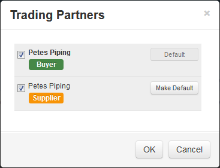
- Select the Accounts Payable account type.
|
NOTE |
There may be multiple accounts shown. Be sure to select the correct account you wish to transact with. |
- Click the Users button on the banner.
- Click the Manage Approvers Document Shares button at the top right of the page.
The Active Shares pop-up window is displayed with the following columns:
- Original Approver - This is the actual "owner" of the document type.
- Shared With - This is the Approver that the document type is shared with.
- Doc Type - This can be Invoice or Field Ticket; depends on Buyer configuration.
- Shared By - Displays who created the share; could be yourself or the Trading Group's administrator.
- Date - The date the share was created.
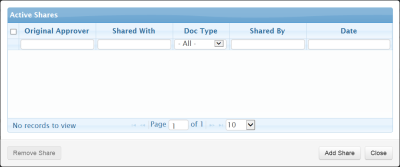
- Click the Add Share button at the bottom right of the window.
The Select Approver Whose Documents Will Be Shared pop-up window is displayed.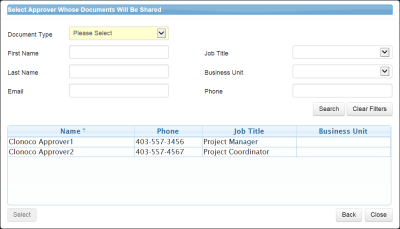
- Select a type from the Document Type drop-down field.
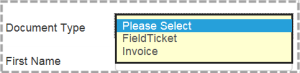
Available types are Invoice and Field Ticket. Selection is dependent on Buyer configuration.
The Select button becomes enabled. - Select an Approver to share from visually, or by searching for them.
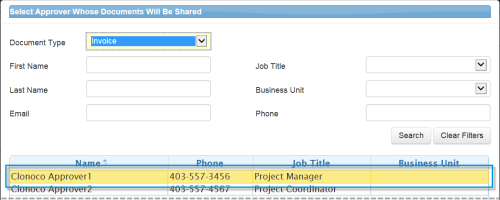
- Click the Select button.
|
Note |
If the share selected already exists, the following message is displayed:
|

- Select an Approver to share to visually, or by searching for them.
- Click the Select button.
The completed share is displayed.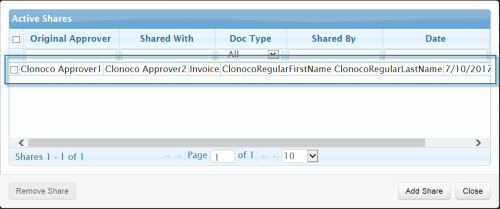
Removing Approver Document shares:
- Click the checkbox to the left of the share to be removed.

- Click the Remove Share button.
The share is removed from the list.